

 NinjaCalc
RaspberryPi Cameras

You cannot hot plug cameras into the Raspberry Pi. So once plugged in, reset the Raspberry Pi. Then run:
rpicam-hello --list-camerasYou should see something like this:
Available cameras-----------------0 : imx296 [1456x1088 10-bit RGGB] (/base/axi/pcie@1000120000/rp1/i2c@88000/imx296@1a) Modes: 'SRGGB10_CSI2P' : 1456x1088 [60.38 fps - (0, 0)/1456x1088 crop]You can use rpicam-still to capture an image:
rpicam-still -o /tmp/test.jpg --immediateYou should see something like this:
[0:21:09.622128465] [1796] INFO Camera camera_manager.cpp:340 libcamera v0.7.1+rpt20260609[0:21:09.634457526] [1799] INFO RPI pisp.cpp:720 libpisp version v1.6.0 29-06-2026 (16:17:40)[0:21:09.647616997] [1799] INFO IPAProxy ipa_proxy.cpp:184 Using tuning file /usr/share/libcamera/ipa/rpi/pisp/imx296.json[0:21:09.657829621] [1799] INFO Camera camera_manager.cpp:223 Adding camera '/base/axi/pcie@1000120000/rp1/i2c@88000/imx296@1a' for pipeline handler rpi/pisp[0:21:09.657858936] [1799] INFO RPI pisp.cpp:1181 Registered camera /base/axi/pcie@1000120000/rp1/i2c@88000/imx296@1a to CFE device /dev/media3 and ISP device /dev/media0 using PiSP variant BCM2712_D0WARNING: Capture will not make use of temporal denoise Consider using the --zsl option for best results, for example: rpicam-still --zsl -o /tmp/test.jpgMade X/EGL preview windowMade DRM preview windowPreview window unavailable[0:21:09.887340797] [1799] WARN V4L2 v4l2_pixelformat.cpp:346 Unsupported V4L2 pixel format Nc30[0:21:09.887370260] [1799] WARN V4L2 v4l2_pixelformat.cpp:346 Unsupported V4L2 pixel format Nc12Mode selection for 1456:1088:12:P SRGGB10_CSI2P,1456x1088/0 - Score: 1000Stream configuration adjusted[0:21:09.887555243] [1796] INFO Camera camera.cpp:1216 configuring streams: (0) 1456x1088-YUV420/sYCC (1) 1456x1088-BGGR_PISP_COMP1/RAW[0:21:09.887669188] [1799] INFO RPI pisp.cpp:1485 Sensor: /base/axi/pcie@1000120000/rp1/i2c@88000/imx296@1a - Selected sensor format: 1456x1088-SBGGR10_1X10/RAW - Selected CFE format: 1456x1088-PC1B/RAWStill capture image receivedpicamera2
picamera2 is a Python library that provides access to Raspberry Pi cameras. It is a Python wrapper around libcamera.1
AI Hats
Raspberry Pi manufacturers AI hats which can be used to boost the performance of inference on the Raspberry Pi. I was running a basic object detection model on the bare Raspberry Pi 5 and got about 3.4 fps (frames per second). Without an active heatsink this also caused the Raspberry Pi to hit its thermal ceiling (approx. 84°C, hurt to touch!) and throttle the CPU .
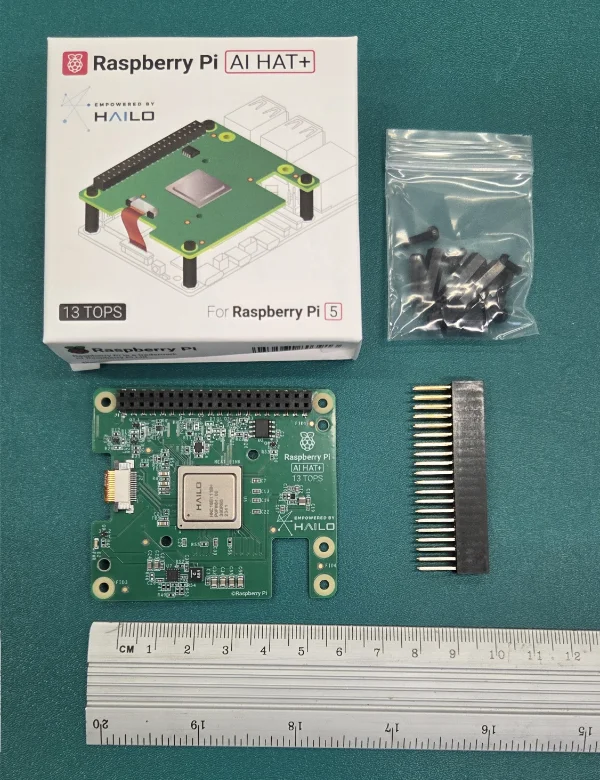
After connected it to the Raspberry Pi using the FPC cable to the PCIe connector, you should be able to enumate the device using lspci:
lspciAnd get something like this:
0001:00:00.0 PCI bridge: Broadcom Inc. and subsidiaries BCM2712 PCIe Bridge (rev 30)0001:01:00.0 Co-processor: Hailo Technologies Ltd. Hailo-8 AI Processor (rev 01)0002:00:00.0 PCI bridge: Broadcom Inc. and subsidiaries BCM2712 PCIe Bridge (rev 30)0002:01:00.0 Ethernet controller: Raspberry Pi Ltd RP1 PCIe 2.0 South BridgeThe Hailo-8 uses HEF files (.hef — Hailo Executable Format) to run inference. They contain optimized layers and weights for run efficient inference on the Hailo-8. Hailo provides a Model Zoo with pre-trained models.
Machine Learning Models
The YOLO yolov8n (n for nano) model is a good starting point for object detection on the Raspberry Pi. I was able to achieve about 3.5 fps on the Raspberry Pi 5 without the AI hat, and about 30 fps with the AI hat+ (13 TOPS).
Footnotes
-
Raspberry Pi Ltd (2026, Jun 30). The Picamera2 Library - A libcamera-based Python library for Raspberry Pi cameras [pdf]. Retrieved 2026-07-28, from https://pip-assets.raspberrypi.com/categories/652-raspberry-pi-camera-module-2/documents/RP-008156-DS-3-picamera2-manual.pdf. ↩