

 NinjaCalc
Controlling FTDI Devices

Using Python and pyftdi
Configuring Windows Drivers
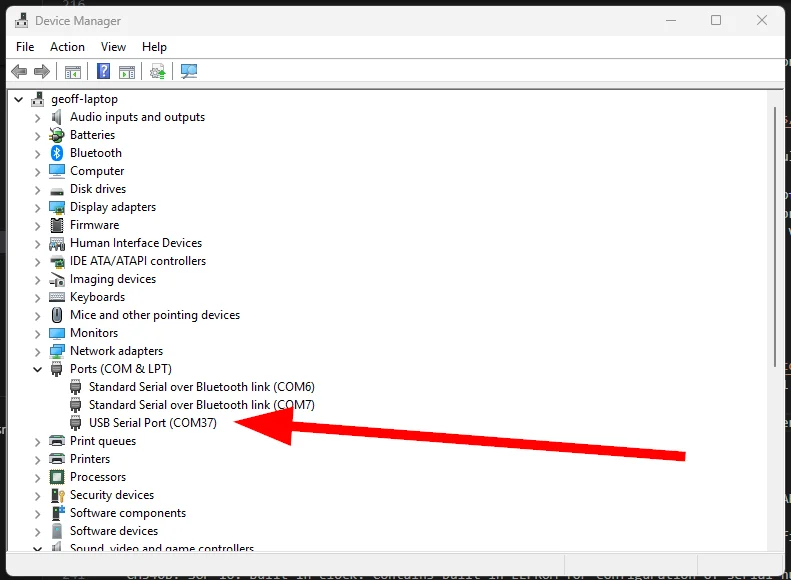
When you connect one of these up to a Windows computer for the first time, it will enumerate as a virtual COM port as shown in This is a placeholder for the reference: fig-ftdi-ic-enumerating-as-a-virtual-com-port.
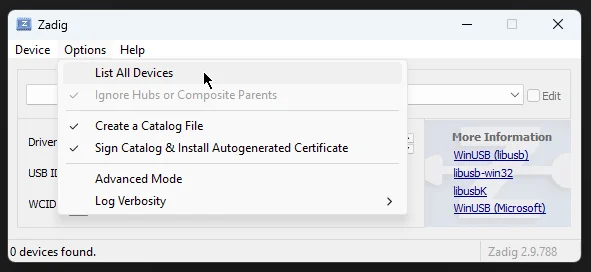
If you want to control the device from software such as Python, using the FTDI library, you may need to change the driver which is associated with the device. You can use Zadig to easily do this. Make sure you click “List all devices” in Zadig to see the FTDI device, as shown in This is a placeholder for the reference: fig-listing-all-devices-in-zadig.
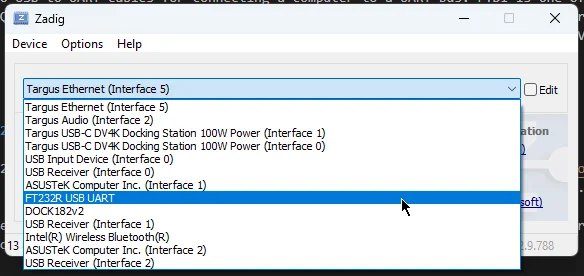
Then select the FTDI device from the drop-down menu, as shown in This is a placeholder for the reference: fig-selecting-ft232r-usb-uart-in-zadig.
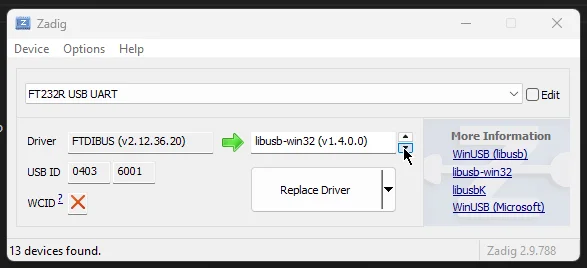
You should now see the current driver, which should be “FTDIBUS” by default. Change this to “libusb-win32” as shown in This is a placeholder for the reference: fig-changing-from-ftdibus-to-libusb-win32-driver-in-zadig. Then click “Replace Driver” to apply the change.
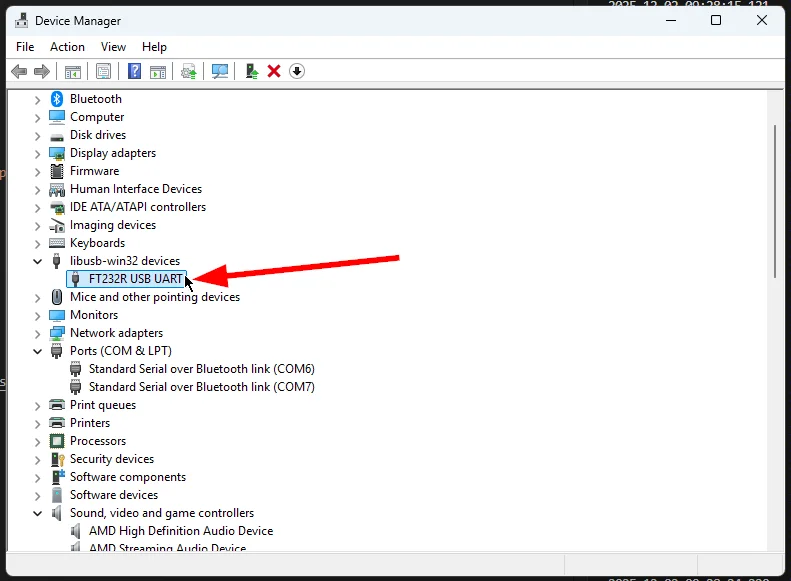
Once you do that, if you go back to the Device Manager, you should now see the FTDI device enumerating as a “libusb-win32” device as shown in This is a placeholder for the reference: fig-ftdi-device-in-device-manager-as-libusb-win32-device.
Configuring Linux Drivers
I have found pyftdi to work well in the Windows Subsystem for Linux (WSL). usbipd manages to pass in the FTDI USB devices easily, and you don’t have to re-assign the driver like you do in Windows.
Device Has No langid Permissions Error
When calling Ftdi.list_devices() on Linux, you might get the exception: The device has no langid (permission issue, no string descriptors supported or device error)
If this is the case, you can add a udev rule to give all users permissions to access FTDI devices. Create the following file:
# udev rules for FTDI devices# This allows users to access FTDI USB devices without root privileges# FTDI vendor ID is 0x0403
# FT232R and other FTDI devices# Use permissions 666 so that no GROUP has to be definedSUBSYSTEM=="usb", ATTRS{idVendor}=="0403", MODE="0666"
Reload udev rules with:
udevadm control --reload-rulesudevadm triggerAnd then unplug and plug the FTDI device back in.
Configuring the CBUS GPIO Pins
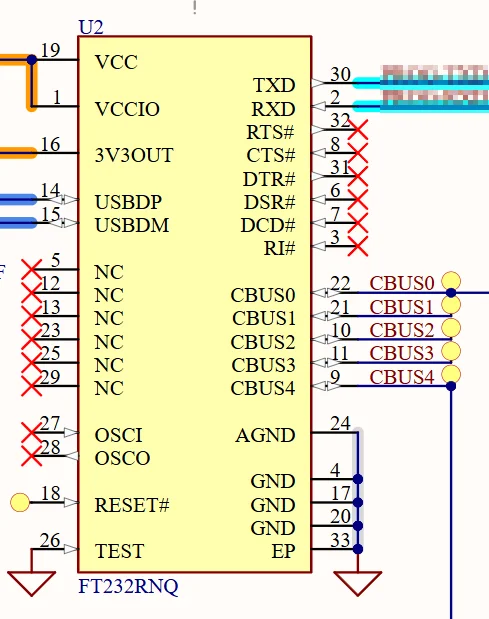
FTDI ICs can contain general purpose GPIO pins which can be controlled from the USB host. These are called CBUS pins. For example, the FTDI FT232RNQ has 5 CBUS pins CBUS0 to CBUS4, as shown in This is a placeholder for the reference: fig-cbus-pins-on-a-ftdi-ic.
Below is an example of how to configure 2 CBUS pins as GPIO using the pyftdi library (one output and one input).
# Open FTDI deviceftdi = Ftdi()
# open_from_url() requires string in the form "ftdi://ftdi:232:BK00835X/1"ftdi.open_from_url(self.device_url)
if not ftdi.has_cbus:    raise RuntimeError("FTDI device does not support CBUS.")
# Initialize EEPROM settingseeprom = FtdiEeprom()eeprom.open(self.device_url)
# Configure 2 CBUS pins as GPIOeeprom.set_property('cbus_func_0', 'GPIO')eeprom.set_property('cbus_func_1', 'GPIO')
# Commit EEPROM settingseeprom.commit(dry_run=False)
# Configure CBUS GPIO# CBUS1 = Input# CBUS0 = Outputftdi.set_bitmode(0, Ftdi.BitMode.CBUS)ftdi.set_cbus_direction(0b0011, 0b0001) # 0b0011 selects the GPIO pins we want to change, 0b0001 sets 0 as output, 1 as input
Then you can set outputs with the ftdi.set_cbus_gpio() method. For example:
ftdi.set_cbus_gpio(0b00001) # Set CBUS0 high, everything else lowftdi.set_cbus_gpio(0b00010) # Set CBUS1 high, everything else lowlist_devices() Bug
Ftdi.list_devices() has a bug (in pyftdi v0.57.1) where it struggles when devices are connected or disconnected after start up. I have found this bug to be present in both the Windows and Linux versions of the library. The following script demonstrates the bug:
import timefrom pyftdi.ftdi import Ftdi
while True:    try:        devices = Ftdi.list_devices()        print(f"Devices: {devices}")    except Exception as e:        print(f"Error: {e}")    time.sleep(1)
Run the script and then plug in the FTDI device. You should see the following output:
Devices: [(UsbDeviceDescriptor(vid=1027, pid=24577, bus=1, address=5, sn='BK008364', index=None, description='FT232R USB UART'), 1)]Then remove the FTDI device and you get the following, indicating that list_devices() is raising an exception:
Error: [Errno 19] No such device (it may have been disconnected)UPDATE
I have discovered that this issue can be fixed by calling UsbTools.flush_cache() (UsbTools is a class provided by the pyftdi library) before calling Ftdi.list_devices(). For example:
from pyftdi.ftdi import Ftdifrom pyftdi.usbtools import UsbTools
UsbTools.flush_cache() # Fixes bugs with list_devices() when devices are connected or disconnected after start updevices = Ftdi.list_devices()
So presumably this means it’s a caching bug, which aligns well with the symptoms.
Using the Serial Port
When using pyftdi, you can get access to the serial port using the pyftdi.serialext.serial_for_url() function. pyftdi does not define it’s own serial API, but leverages the popular pyserial API. serial_for_url() returns a pyserial.Serial object, from which point you can use the standard pyserial API to send and receive data. For example:
# Open a serial port on the first FTDI device interface (/1) @ 115200 baudport: pyserial.Serial = pyftdi.serialext.serial_for_url('ftdi://ftdi:2232h/1', baudrate=115200)
# Send bytesport.write(b'Hello World')
# Receive bytesdata = port.read(1024)